How to Play Pictionary Online: Zoom, Video Calls & Shared Whiteboards
Learn how to play Pictionary online with Zoom, Google Meet, or Teams. Set up a shared whiteboard, keep prompts private, and manage remote teams.
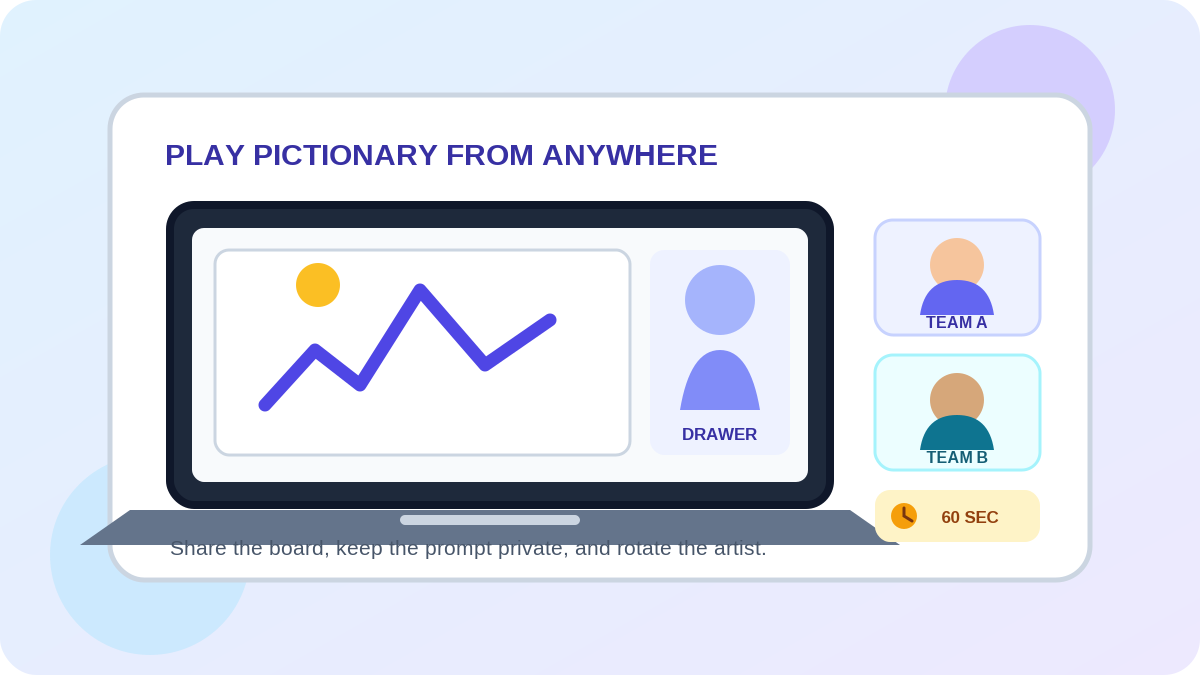
You can play Pictionary online with friends, classmates, and family members even when everyone is in a different place. One person receives a secret prompt, draws it on a shared screen, and lets the group guess before the timer ends. The main challenge is sharing the drawing without showing the answer too soon.
You do not need a special online Pictionary platform. A video call, a shared whiteboard, a prompt source, and a clear turn order are enough. This guide explains how to set up a fair game using Zoom, Google Meet, Microsoft Teams, or another video-call service your group already uses.
What you need
Prepare four things before inviting players:
- A video call: Choose a meeting app that lets players hear one another and share a screen.
- A shared drawing space: Use a whiteboard tool that participants can view or edit, or let the artist share a drawing app.
- A prompt source: Use the free Pictionary word generator or prepare a batch with the Pictionary word list generator.
- A timer and scorekeeper: Agree on a time limit and decide who will update the score after each round.
The generator provides prompts and game controls in the browser. For a remote match, the host should manage the turn order and scoreboard unless everyone is using the same shared scoring method. A score or drawing on one person’s device does not automatically appear on everyone else’s device.
Choose a setup that fits your group
The artist shares a whiteboard
The artist shares only the drawing window or whiteboard. Other players watch and call out guesses. Give editing access only to the person whose turn it is, so another player cannot add clues by mistake.
The host shares the drawing screen
The host can open a drawing surface and share that window. If the meeting software supports remote control, the artist may be able to draw from their own device, but permissions vary by platform. Test this before the game; it may be easier for the artist to share their own screen.
Use paper and a camera
A digital whiteboard is not required. The artist can draw on paper and point a phone or webcam at the page. Place the camera above the paper, keep the room bright, and check that the drawing is the right way up. This low-tech setup works well for family calls and small groups.
Keep the secret word private
If the prompt and drawing are visible in the same browser tab, sharing the whole tab may reveal the answer. Use one of these methods:
- Let the host choose a prompt and send it privately to the artist.
- Ask the artist to open the prompt on a second device while sharing only the whiteboard on the first device.
- If the generator’s Hide Word control is used, check the shared view first and make sure the artist has another way to see the prompt.
Never send the answer in the public meeting chat. Before starting the timer, confirm that the artist can see the clue and the guessing team cannot.
Agree on simple rules
Remote games can become confusing when players talk over one another or do not know whose turn it is. Agree on these points before the first round:
- Choose two to four teams and give each one a clear name.
- Rotate the artist so everyone gets a chance to draw.
- Use the same time limit for teams playing at the same difficulty.
- Let players guess aloud, or use meeting chat if audio becomes crowded.
- Decide whether the artist may pass on a prompt.
- Award one point for a correct guess before time runs out.
- Keep the same drawing rules for every team.
For a casual match, 60 seconds is a useful starting point. Give more time for a long phrase, younger players, or a group that is new to the game. Apply the same adjustment to every team.
A simple host checklist
- Create the video meeting and share the joining details.
- Open the prompt generator and prepare the scoreboard.
- Test the shared whiteboard or camera view.
- Explain how the artist will receive a private prompt.
- Choose the first team and artist.
- Start the timer after the drawing screen is ready.
- Record the point, rotate the artist, and move to the next team.
For a large group, appoint a second person to manage the score and turn order. This lets the host focus on the meeting and technical setup.
Tips for a smoother online game
Test screen sharing first
Share the correct window and check what viewers can see. Close unrelated tabs, notifications, and private messages before sharing. Window sharing can be safer than sharing the entire desktop when that option is available.
Keep the drawing area large
A small canvas can be hard to read on a phone. Use a larger screen when possible, zoom in on the whiteboard, and avoid drawing too close to the edges. Encourage simple shapes and clear clues rather than tiny details.
Reduce background noise
Ask players to mute when they are not guessing if the call becomes noisy. The host can invite one team to guess at a time. If the group prefers chat guesses, agree that the first correct message counts.
Plan for connection problems
If a player freezes or loses audio, pause the timer and let them reconnect. Do not award or remove a point because of a technical issue. Resume the round or replace the prompt so both teams have a fair chance.
Make the game accessible
Read the rules aloud, use familiar words for new players, and allow extra time when needed. For a mixed-age family call, combine easy single words with a few phrases. The Pictionary words for kids collection can help with younger players, while the hard Pictionary words list offers a challenge for experienced groups.
Online Pictionary for classrooms
Teachers can use a short drawing round to review vocabulary from a lesson. Choose a small word set, explain each new term before play, and assign students to small teams. If students are not comfortable drawing in front of the whole class, let them work in pairs or submit a drawing through the class whiteboard.
After a guess, ask the student to use the word in a sentence or explain which part of the drawing gave the clue. Keep the focus on vocabulary and communication, not artistic skill. For more classroom ideas, read our Pictionary words for kids and classroom guide.
For a remote lesson, check the school’s rules for screen sharing and student accounts. Share only the drawing surface needed for the activity, and avoid displaying student names or private messages unnecessarily. A teacher or host should control who can edit the shared board.
Common problems and quick fixes
| Problem | Practical fix |
|---|---|
| The secret word appears on the shared screen | Send the prompt privately or use a separate device for the artist. |
| Players speak at the same time | Use one guessing team at a time or switch to chat guesses. |
| The drawing is too small | Enlarge the whiteboard or share a larger window. |
| A player cannot edit the board | Check sharing permissions before starting the timer. |
| The connection drops during a turn | Pause, reconnect, and restart with a fair prompt if needed. |
| The score becomes confusing | Assign one scorekeeper and announce the score after each round. |
Frequently asked questions
Can you play Pictionary on Zoom?
Yes. Use Zoom for the video call and screen sharing, then draw on a shared whiteboard, a drawing app, or paper shown to the camera. Keep the prompt private from the guessing team.
Can you play Pictionary on Google Meet or Microsoft Teams?
Yes. The same basic setup works with video-call services that support screen sharing. Exact sharing and whiteboard options depend on the account and version, so test the setup before the game.
How do you stop players from seeing the word?
Send the prompt directly to the artist or show it on a separate device. Share only the drawing surface with the other players. Check the screen before the round begins.
How many teams should play online?
Two teams are easiest to manage for a small group. Three or four teams can work for a larger call if the host keeps a clear turn order and updates the score after every round.
What is the best time limit for an online round?
Try 60 seconds for familiar single words. Use 90 seconds for phrases or younger players. Agree on the limit before the first turn and keep it fair for every team.
Start your next online drawing game
Choose a video-call app, prepare a shared drawing space, and decide how the artist will receive a private prompt. Then open the Pictionary word generator, select a category and difficulty, and start the first round. With a clear host, a visible drawing area, and simple rules, a remote Pictionary game can be easy to run and fun for everyone.